• Hi all and welcome to TheWoodHaven2 brought into the 21st Century, kicking and screaming! We all have Alasdair to thank for the vast bulk of the heavy lifting to get us here, no more so than me because he's taken away a huge burden of responsibility from my shoulders and brought us to this new shiny home, with all your previous content (hopefully) still intact! Please peruse and feed back. There is still plenty to do, like changing the colour scheme, adding the banner graphic, tweaking the odd setting here and there so I have added a new thread in the 'Technical Issues, Bugs and Feature Requests' forum for you to add any issues you find, any missing settings or just anything you'd like to see added/removed from the feature set that Xenforo offers. We will get to everything over the coming weeks so please be patient, but add anything at all to the thread I mention above and we promise to get to them over the next few days/weeks/months. In the meantime, please enjoy!

Basic Sketchup Help

ScaredyCat

Sapling
Joined
Nov 25, 2020
Messages
261
Reaction score
0
Location
North Suffolk
I'm just trying to do something that seems relatively simple, cut a piece off something at an angle. I can't for the life of me work out how to do it.

This image should hopefully help you picture what I'm after.
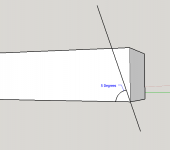
skechup-angle.png

Can anyone point me in the right direction?

I'm using Sketchup Make 2017 (can't afford them newfangled ones and they're not supported by my hardware)
 
Sorry, never mind. Figured it out 5 seconds later.

Used the protractor to set the guide line.
Selected the top line of the end of the work (only the top line)
move the line to the angle based on the guide..

sketchup2.png
 
Moving the edges is definitely one way and it's good you sussed that one. An alternative would have been to use the Line tool to draw an angled edge and then Push/Pull on the triangle to remove the waste.
 
I'll give this a go. Found an issue with my method if I wanted to use the push/pull tool to change the length.
 
ScaredyCat":u9p5auy2 said:
Found an issue with my method if I wanted to use the push/pull tool to change the length.

Push/Pull only works perpendicular to the face you are extruding. If the face has been nagled as in your previous thing, don't use Push/Pull. Select the end and use Move. Type the desired distance and press Enter.
move.gif
 
You guys are far too clever or me :shock:

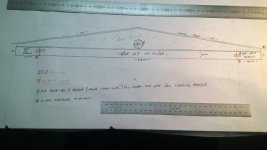
This is my latest to scale drawing of a roof truss from which I then make a cutting template.

All done with very old drawing instruments :D

DrawingRoofTrusses.jpg
 
Dave R":mqzrxkv1 said:
ScaredyCat":mqzrxkv1 said:
Found an issue with my method if I wanted to use the push/pull tool to change the length.

Push/Pull only works perpendicular to the face you are extruding. If the face has been nagled as in your previous thing, don't use Push/Pull. Select the end and use Move. Type the desired distance and press Enter.

Ok, I'm still finding my way with it but getting there slowly, thanks for that tip :obscene-drinkingbuddies:


Phil":mqzrxkv1 said:
You guys are far too clever or me :shock:

This is my latest to scale drawing of a roof truss from which I then make a cutting template.

All done with very old drawing instruments :D

To be honest I've been fighting with it for a while and so many time just thought, "draw it" - then I remembered how bad I was at drawing. :D
 
The Move tool is effectively the board stretcher, shrinker. New users often thing they should use the Scale tool but that will scale the features as well. Move is a better choice. Note the left to right selection of the end.
move.gif
 
Back
Top