

- Joined
- Jul 21, 2014
- Messages
- 10,414
- Reaction score
- 165
This topic is designed to help with the process of setting up a photo hosting account with Photobucket and how to insert your photographs into your forum posts.
Photobucket is a free photo hosting site. There are others available which work similarly. These instruction use illustrations from Photobucket.
If you don’t have a Photobucket account then navigate to http://s115.photobucket.com and register.
Login to your Photobucket account and search for the UPLOAD button.

Follow the instructions to upload your photos. You can use drag and drop or navigate to each photo on your computer if you prefer.
Upload all the photos that you will need for your forum write up.
After completing the upload, navigate to the thumbnail view of your photos
Open a second window in your browser navigate to the area of the haven where you want to post.
After starting your text and getting to the place you want a photo, press enter and switch to the other window and hover the mouse over the wanted photo. Click on the gearwheel icon and select “get links”

In the box that will open, select the link at the bottom where it says IMG codes.
This will automatically copy the link pointing to your picture to the clipboard.
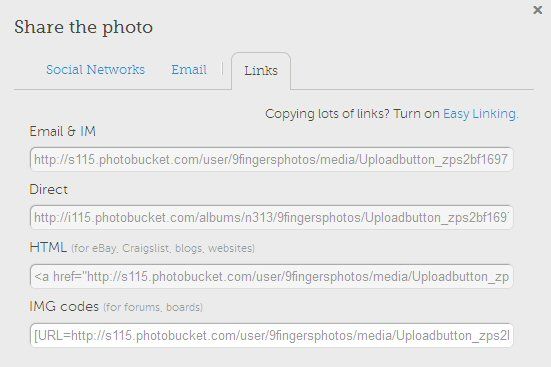
Switch back to the forum post in progress and paste in the link. Press return and continue with your text entry.
When you have finished post the message to the forum as usual and the image tags will be replaced by your photos, resized if necessary to fit the forum format.
At any stage, you can press preview at the bottom at the message entry box and check you have the correct photo in relation to the text. If not corrections can be made.
Hope this helps
Bob
Photobucket is a free photo hosting site. There are others available which work similarly. These instruction use illustrations from Photobucket.
If you don’t have a Photobucket account then navigate to http://s115.photobucket.com and register.
Login to your Photobucket account and search for the UPLOAD button.

Follow the instructions to upload your photos. You can use drag and drop or navigate to each photo on your computer if you prefer.
Upload all the photos that you will need for your forum write up.
After completing the upload, navigate to the thumbnail view of your photos
Open a second window in your browser navigate to the area of the haven where you want to post.
After starting your text and getting to the place you want a photo, press enter and switch to the other window and hover the mouse over the wanted photo. Click on the gearwheel icon and select “get links”

In the box that will open, select the link at the bottom where it says IMG codes.
This will automatically copy the link pointing to your picture to the clipboard.

Switch back to the forum post in progress and paste in the link. Press return and continue with your text entry.
When you have finished post the message to the forum as usual and the image tags will be replaced by your photos, resized if necessary to fit the forum format.
At any stage, you can press preview at the bottom at the message entry box and check you have the correct photo in relation to the text. If not corrections can be made.
Hope this helps
Bob